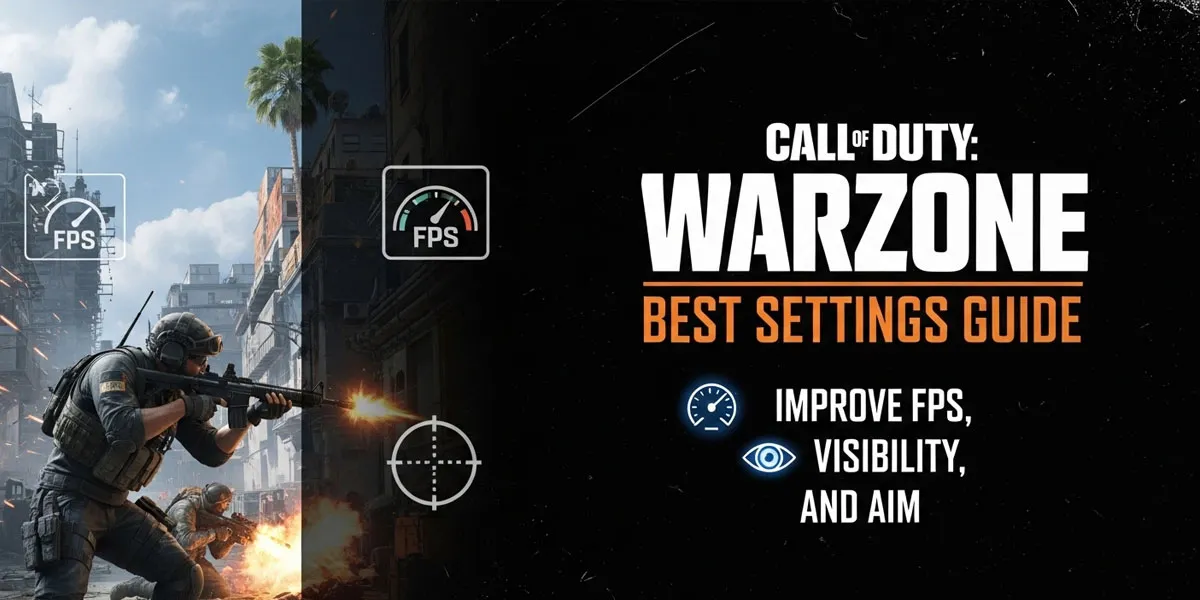
Call of Duty Warzone is fast, competitive, and unforgiving. Small disadvantages—low frame rate, poor visibility, or bad audio can be the difference between winning a gunfight and getting eliminated. Many players focus only on aim practice, but settings play a huge role in performance and consistency.
This guide is designed to help you optimize Warzone settings for smoother gameplay, better visibility, and improved aim, whether you’re playing on PC or console. You don’t need a high-end setup to benefit—just the right configuration.
TL;DR
- Higher FPS matters more than ultra graphics
- Visibility and clarity win gunfights
- Audio settings are crucial for footsteps
- Sensitivity should feel consistent, not fast
- Small setting changes can give a real competitive edge
Why Settings Matter So Much in Warzone
Warzone is not a casual shooter. Large maps, fast time-to-kill, and constant third-party fights mean your game must run smoothly at all times. Poor settings can cause:
- Input lag
- Missed audio cues
- Visual clutter
- Inconsistent aim
Optimizing settings won’t turn you into a pro overnight, but it removes unnecessary disadvantages.
Best Graphics Settings for Warzone (PC)
The goal on PC is clarity and frame rate, not realism.
Recommended Graphics Priorities
- Display Mode: Fullscreen (exclusive if available)
- V-Sync: Off
- Texture Resolution: Medium (High only if you have strong GPU)
- Texture Filtering: Normal or Low
- Shadow Quality: Low
- Particle Quality: Low
- Motion Blur: Off (both world and weapon)
Why this works:
- Higher FPS improves reaction time
- Lower shadows reduce visual noise
- Motion blur reduces clarity during fights
Always choose performance over visuals in competitive matches.
Best Warzone Settings for Consoles
Console players have fewer options, but some settings still matter.
Recommended adjustments:
- Motion Blur: Off
- Film Grain: Off
- Field of View (FOV): 100–110 (if available)
- Brightness: Adjust so dark areas remain visible
Increasing FOV helps with awareness but may reduce clarity at long range. Find a balance that feels comfortable.
Field of View (FOV): Finding the Sweet Spot
FOV affects how much of the battlefield you see.
- Low FOV (80–90): Easier long-range aiming, less awareness
- Medium FOV (95–105): Balanced choice for most players
- High FOV (110+): Great awareness, harder long-range tracking
Most players perform best between 100–105 FOV.
Best Sensitivity Settings for Better Aim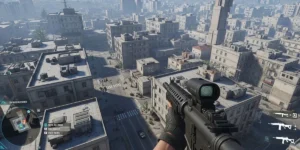
High sensitivity looks flashy but reduces accuracy. Warzone rewards controlled, consistent aim.
General Sensitivity Tips
- Start lower than you think
- Increase gradually
- Focus on tracking consistency
For controller players:
- Use a sensitivity that allows precise micro-adjustments
- Avoid max sensitivity early
For mouse players:
- Choose a DPI and sensitivity combo that feels natural
- Avoid changing settings too often
The best sensitivity is one you can reproduce consistently under pressure.
Aim Assist and Controller Settings
Aim assist is a core part of controller gameplay.
Recommended controller settings:
- Aim Assist Type: Standard
- Response Curve: Dynamic or Standard
- Deadzone: As low as possible without stick drift
Lower deadzones improve responsiveness but require stable controllers.
Audio Settings: Hearing Is Winning
Audio is often overlooked, but the direction of footsteps and gunfire is critical in Warzone.
Best Audio Settings
- Audio Mix: Boost High or Headphones
- Master Volume: High enough without distortion
- Music Volume: Low or Off
- Dialogue Volume: Medium
- Effects Volume: High
Good audio awareness helps you react before you see enemies.
Interface and HUD Settings
Cleaner HUD = better focus.
Suggestions:
- Minimize on-screen clutter
- Enable hit markers
- Use colorblind filters if they improve visibility
- Adjust minimap size for quick glances
Small UI changes reduce mental overload during intense fights.
Performance Optimization Tips (PC)
Beyond in-game settings:
- Update GPU drivers
- Close background applications
- Use performance power mode
- Ensure the game is installed on a fast drive
Consistency matters more than peak performance.
Common Settings Mistakes to Avoid
- Copying pro settings without adjustment
- Playing on ultra graphics for visuals
- Using extremely high sensitivity
- Ignoring audio balance
Settings should match your playstyle and hardware, not someone else’s.
How to Test and Fine-Tune Your Settings
After changing settings:
- Play a few matches
- Observe FPS stability
- Check visibility in different lighting
- Adjust sensitivity slowly
Avoid changing everything at once. Small steps work best.
Final Verdict
The right settings won’t magically make you win every match, but they remove unnecessary disadvantages. Warzone is about reaction time, awareness, and consistency, and optimized settings support all three.
Once your game runs smoothly and feels comfortable, you can focus on improving skills that truly matter: positioning, decision-making, and teamwork.
FAQs
Do graphics settings really affect performance?
Yes. Lower graphics often improve FPS and visibility.
Is a higher FOV always better?
No. Too high FOV can hurt long-range accuracy.
Should I copy pro player settings?
Use them as a reference, not a rule. Adjust for comfort.
Are console players at a disadvantage?
Not necessarily. Good settings and awareness still matter.